

Miko Cloud and Connect
Needs you and notifications on your phone
Answer agents from the Inbox, and get notified on your phone when one needs a decision.
Answer from the Inbox
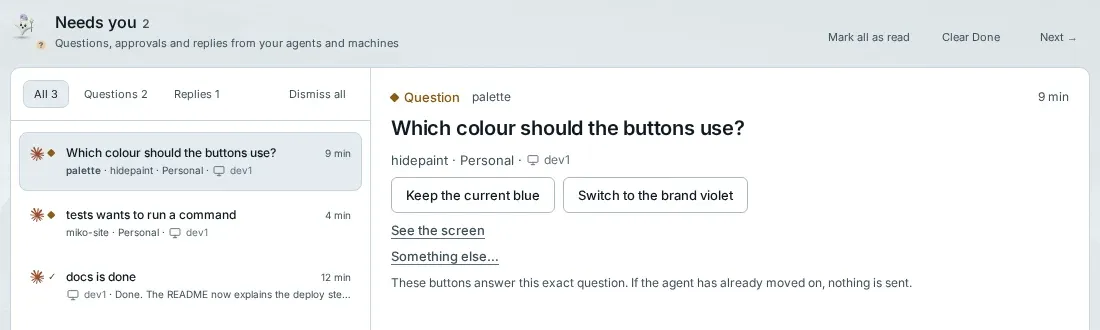
Section titled “Answer from the Inbox”When an agent needs a decision, it lands in the Inbox. Needs you in the top bar counts it, and so does the Inbox tab on a phone. Open it with ⌘I.
Inbox
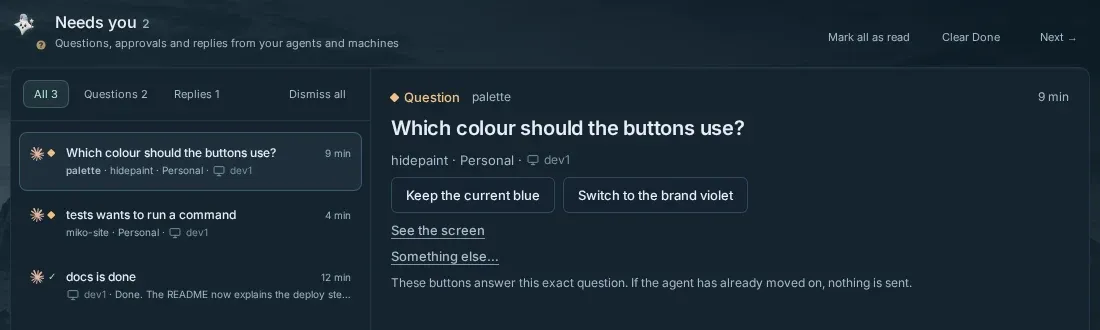
Filter by All, Questions or Replies. Dismissed brings back what you put away.
A Needs you card says why: Needs permission, Has a question, Asks you something or Stopped with an error.
Permission requests and questions come from Claude Code and OpenCode agents.
A finished agent reads “… is done”, marked Done or From a routine.
Answer
Press Allow, Deny or Deny with a note….
A question shows its own options. A review card has a box to reply.
A long request says “Shortened. Open the terminal to see all of it.”
Claude’s plan reviews are answered in the terminal.
Already handled
Another device answered first, or the agent moved on. Nothing was sent.
Type here
Only one device types into an agent at a time.
When Typing is on … shows, press Type here to take over.
Notifications on your phone
Section titled “Notifications on your phone”On iPhone, use Miko for iPhone: pair it from Settings › Devices › Add iPhone. See Miko on your iPhone. On another phone, use the web app:
-
Add the phone
Sign in with your passkey and press Add this device, or approve it from a device you already use. See Devices and recovery.
-
Turn on notifications
Open Settings › Notifications and press Enable notifications, then allow them when the browser asks.
-
Send a test
On the same page, press Send test. “Test from Miko” should appear in a few seconds.
On Android, use Chrome. Adding Miko to the Home Screen is optional there.
What a notification shows
Section titled “What a notification shows”Chrome, Edge and Firefox 152+
Allow and Deny, or the question’s options, sit on the notification.
On a Mac they’re under Options. On Android, pull the notification down.
Safari and iPhone
Notifications have no buttons. Tap one, then press Allow on the card.
When buttons show
Only when the notification shows the whole request.
Never for file edits or MCP tools, and never with Hide details on the lock screen on.
What they say
“… needs permission”, “… has a question”, “… asks you something”, “… stopped with an error” or “… is done”, with the account, the machine and the request.
A permission request or question gets one reminder after 15 minutes: “Still waiting · …”.
No notification while you’re looking at that agent. If you don’t answer, it comes after a minute.
Notification settings
Section titled “Notification settings”Settings › Notifications holds the rest. Turn off stops notifications on this device.
Notify me about
Switch Permission requests, Choices, Questions, Errors, Done, Machines going offline and Routines on or off.
Done is silent unless you turn on Completion sound in push notifications. A machine counts as offline after 10 minutes.
Security notices, like a new device or a new sign-in, are always on.
Quiet hours
Notifications still arrive, without sound.
Set From, To and Starts on. It starts as 22:00 to 07:00.
Still alert me for: lets permission requests or questions through.
On iPhone, sound follows the phone’s own settings. Use Focus to silence Miko there.
Pause
Press Mute all devices for 1 hour, or mute until your quiet hours end. Unmute ends it.
Muted notifications still arrive, without sound.
Muting reaches your other devices within a minute.
Hide details on the lock screen
Notifications say “An agent needs permission”, without names, the command or the question.
Use different settings on this device
The switches then apply on this device only, and Pause mutes only this device.
Busy machines
Miko sends a summary every 5 minutes instead of each request.
When nothing arrives
Section titled “When nothing arrives”Nothing arrived yet
Open Settings and turn notifications on again.
Notifications are blocked for this site
Allow them in the browser’s site settings, then come back.
Miko got it on this device
Check this device’s notification settings for your browser, and Focus or Do Not Disturb.
Miko couldn’t reach this device’s push service
Turn notifications off and on again.
Signed out
Signing out on a device stops its notifications at once.
Done and Update
Section titled “Done and Update”Finished agents get a clear Done state, with a done counter next to ◆ Needs you. Only Needs you and Done count and can notify; a blue Update marks an agent that reported but is still working.