

Miko Cloud and Connect
The map
Every machine, project and agent on one screen, with what waits for you in colour.
Press the map button in the top bar, or ⇧⌘M on a Mac and CtrlShiftM elsewhere. The Mac app has the same map under ⇧⌘M.
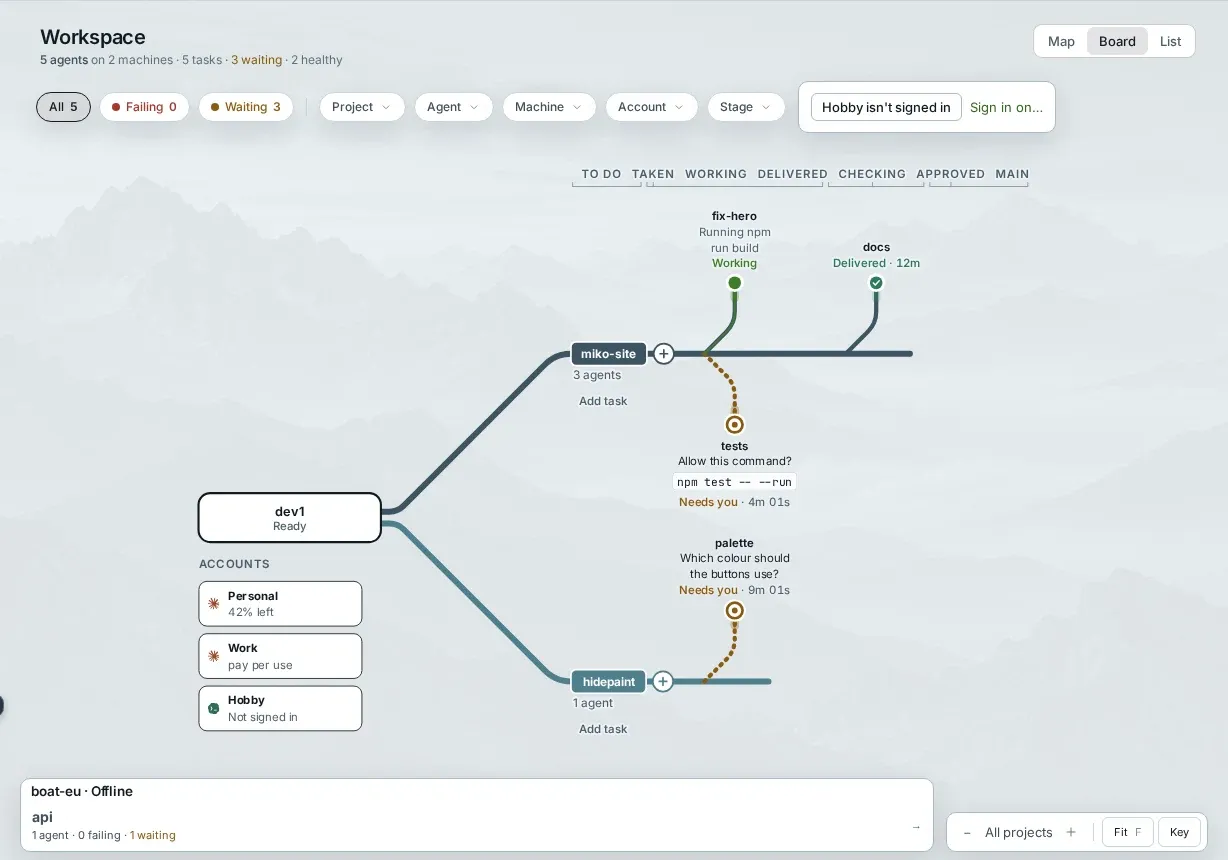
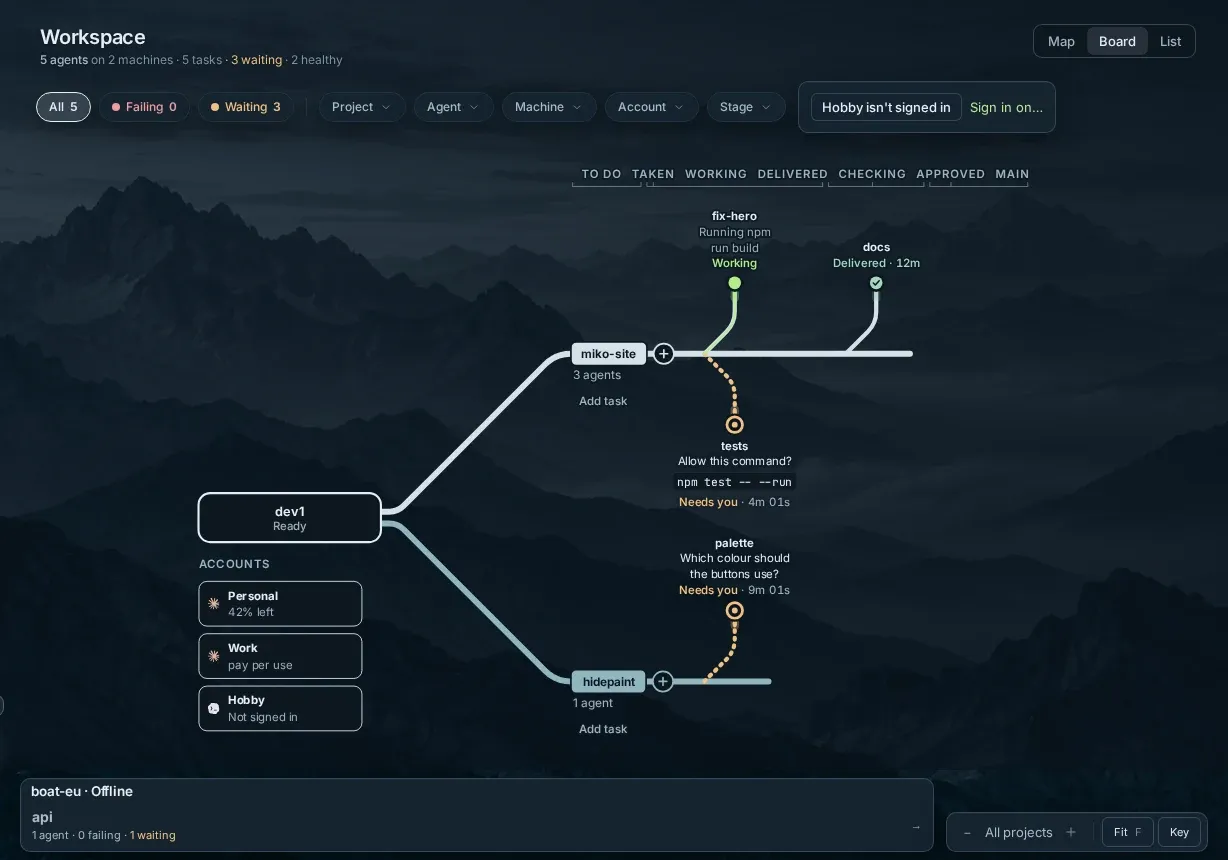
Three ways to look
Section titled “Three ways to look”Map
Your machines with their projects and agents. Only what needs someone is drawn in colour.
Board
Each project is a line, and its tasks move along it: To do, Taken, Working, Delivered, Checking, Approved and Main.
A task sent back for a fix is marked Sent back. Add task under a project puts a new one in To do.
List
Each machine with its health, accounts and agents. A phone always shows the list.
Find what you need
Section titled “Find what you need”Filters
All, Failing and Waiting, each with its count. Narrow it further by Project, Agent, Machine, Account or Stage.
Answer from the map
A waiting agent shows its question or the command it wants to run. Open it to answer.
Accounts
Each machine lists its accounts and how much is left. An account that isn’t signed in on a machine says so. Drag it onto a machine to sign in there.
Move around
Zoom with − and +. Fit (F) shows everything. Key explains the lines and marks.
The keys for the map are in Keyboard shortcuts.