

Miko Cloud and Connect
Extensions
Connect GitHub, Vercel, keys, tools and skills once. Every agent on every machine can use them.
Add a connection
Section titled “Add a connection”Open Extensions with ⌘4, or Tools (MCP), Skills or Integrations in the sidebar. On a phone it’s in the menu at the top right. Press Connect and pick what to add.
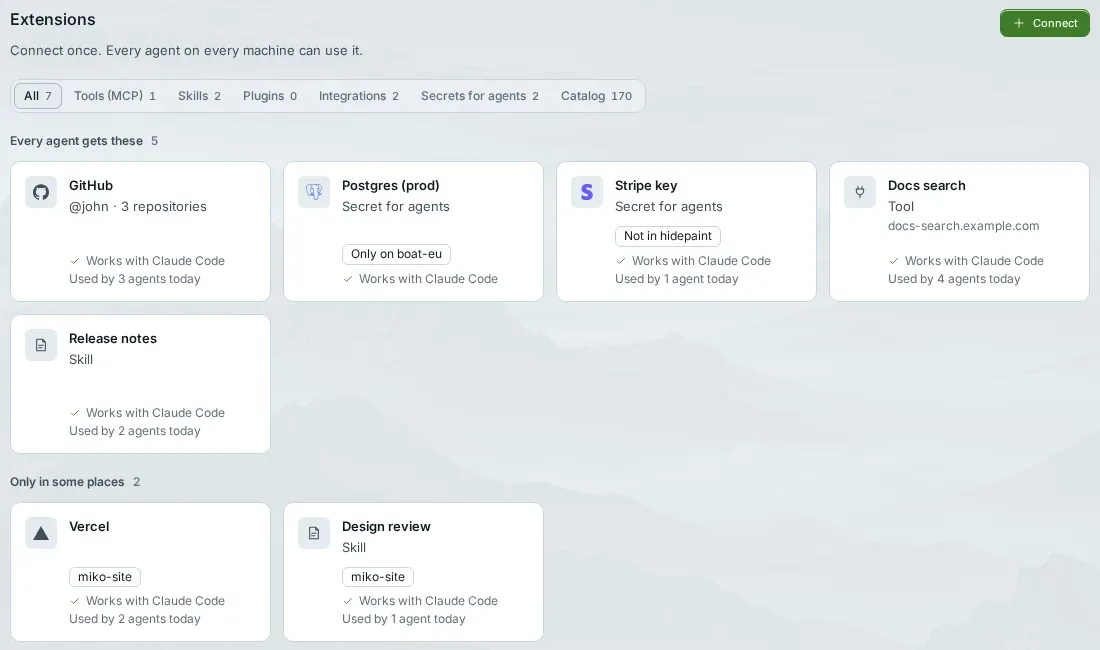
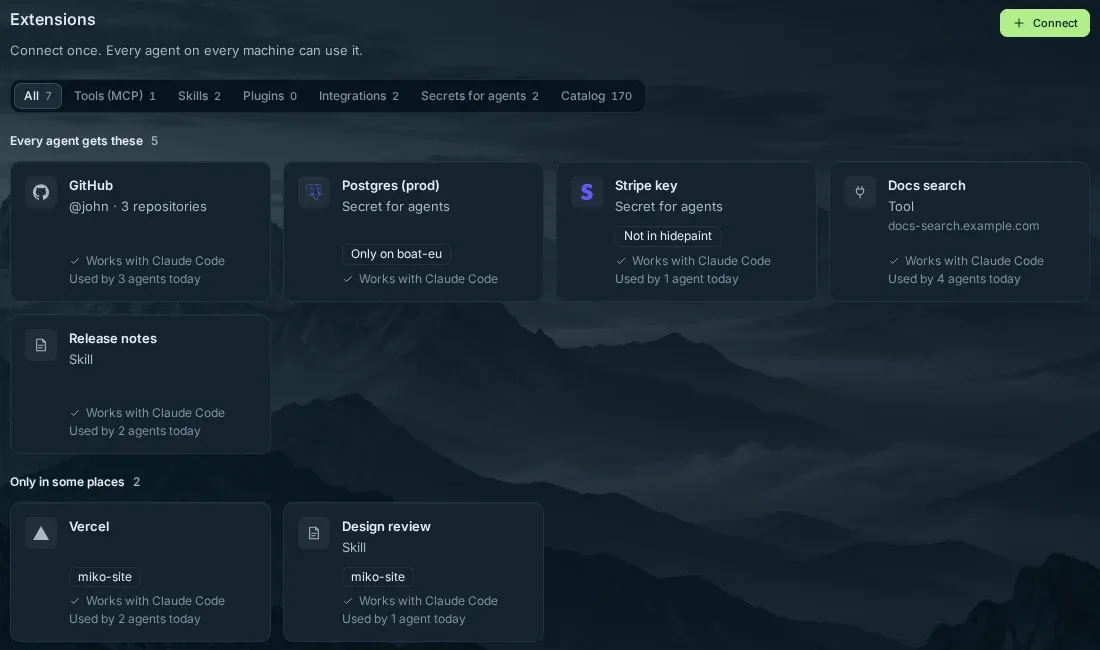
The filters are Tools (MCP), Skills, Plugins, Integrations, Secrets for agents and Catalog.
GitHub
Choose GitHub, then Use a token instead. Or open Search or run… and choose Connect GitHub with an access key.
On GitHub, make a fine-grained access key for the repositories agents may use (Settings › Developer settings). Paste it under Access key and press Save.
Agents can then push with git.
Vercel
Make an access key in Vercel (Account Settings). Paste it under Access key and press Save.
A key
Fill in Name, Name agents see and Key, then press Save.
Name agents see is how agents find it, for example STRIPE_API_KEY. Use capital letters, digits and _, and end it like a key, for example _KEY, _TOKEN or _URL.
The key is never shown again. To change it, open the connection and press Replace key.
A tool by its link
Fill in Name and Link. The link starts with https://.
Answer Does it need a key?: No, Yes, a key sent with each request or The link itself holds the key. Then press Add tool.
With a key, agents use the tool through Miko on your machine, and the key stays out of their reach.
A skill
Press Choose a folder and pick the skill’s own folder. It needs a SKILL.md with a name and a description.
Press Add skill. Agents on your machines get a copy.
If the skill lets agents run things without asking, Miko lists them and asks for your passkey.
A skill holds up to 300 text files and 4 MB. A skill that runs commands on its own can’t be added yet.
Choose which agents get it
Section titled “Choose which agents get it”Which agents
A new connection goes to All my agents. When you add a key, you can pick one project under Which agents instead.
To narrow it later, open the connection and choose Only some places, or Turn off in… a project.
Under Machines, choose which of your machines can use it.
On a computer, you can also drag a card onto All my agents, a project or an agent.
When agents get it
New agents get it right away.
Running agents get it after a restart.
More agents
Giving a key or GitHub to more agents or machines asks for your passkey.
Apps
Claude Code, Codex and OpenCode can use GitHub, Vercel, keys and tools.
Skills work in Claude Code and OpenCode. Codex doesn’t get skills yet.
If one of your apps can’t use a connection yet, its card says so, for example “Not in Codex yet”.
AI accounts
Keys for an AI account can’t be added here. Sign in under Accounts on each machine instead.
A machine online
Connecting needs one of your machines online.
How keys are kept
Section titled “How keys are kept”How it’s stored
Sealed on your device. Miko’s servers store it locked. Only your machines can unlock it.
On Ubuntu
Miko checks which agent asks before it hands a key over, so only the agents you pick can use it. This is on by default.
Elsewhere
Where that check is off, for example on Debian 12 by default, any agent on the same machine could read a key if it tried.
Open a connection and look under What agents can see to see which applies.
Same machine
Agents on the same machine share its files. Keep work you don’t trust on its own machine.
Not in the web app yet
Section titled “Not in the web app yet”Plugins can’t be installed in the web app. Tools that run a command or ask you to sign in aren’t available here yet; add those on the Mac under Extensions.