

Miko Cloud and Connect
Your machines
See how busy each machine is, keep its disk from filling up, and use snapshots and power on a Miko Cloud machine.
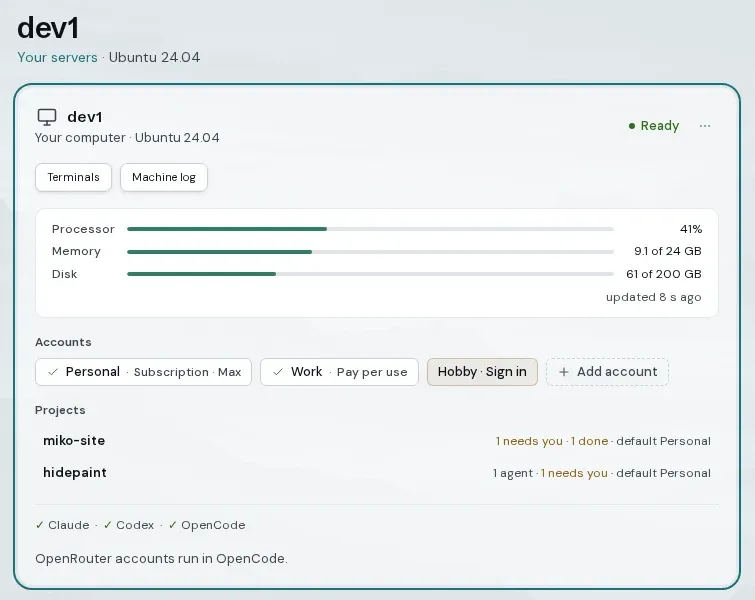
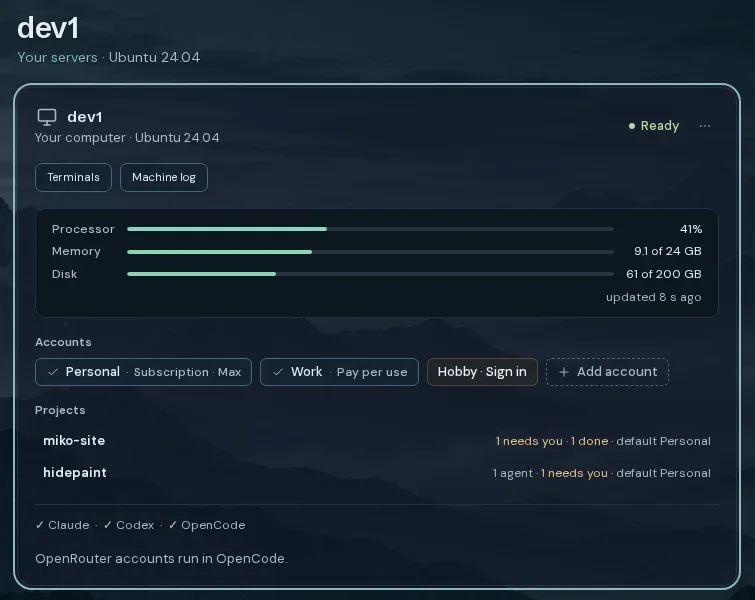
Open Machines with ⌘2, or under Settings. Each machine has a card with its state, its accounts and its projects.
Add a machine
Section titled “Add a machine”Add a machine offers Miko Cloud, Mac and Linux server.
Linux server
Run one install command on Ubuntu 24.04 or 26.04, or Debian 12 or 13. Docker and WSL won’t work.
Then check that the three words match on both screens. See Connect your own server.
Your servers
Servers you connected yourself are also listed in Settings under Your servers.
How busy it is
Section titled “How busy it is”Now
Processor, Memory and Disk, in percent and in GB used of the total, with when it last updated.
Last 24 h
On an up-to-date machine, a chart of CPU in use, memory and disk. It marks Steal, the time the machine waited for its host, and when it ran near its maximum.
Points are 5-minute averages. Gaps were not measured.
Disk space
Section titled “Disk space”The status line
For example “72% of disk used · 28 GB free”. A warning shows at 80 %.
Disk space is low
At 95 % used, or under 2 GB free, it lands in Needs you: “Free up space on this machine before starting another agent.”
New agents can’t start until there is room. Review largest folders shows where the space went.
Cleaning up
You free space yourself, in a terminal or through an agent. Automatic cleaning isn’t available yet.
Accounts on a machine
Section titled “Accounts on a machine”Each machine keeps its own AI sign-ins. On a Miko Cloud machine, Accounts kept here lists the sign-ins it holds and renews. Your other machines can use them under Accounts from …: press Connect (it uses your passkey) or Disconnect.
Disconnect removes the sign-in from that machine only. It doesn’t sign you out at the provider. Whoever runs the server that keeps a sign-in can read it.
Snapshots and power
Section titled “Snapshots and power”On a Miko Cloud machine, open ⋯ › Snapshots & power….
Snapshots
A copy of the whole machine at one moment. Press Take snapshot now, or Delete an old one.
Under Automatic, choose Off or Every day at a time (UTC), and how many days to keep them.
Your own snapshots are never deleted to make room. The oldest automatic one goes first.
Power
Start, Restart, Shut down and Force off. Force off is like pulling the plug.
Reinstall
You get a new, clean machine. Everything on its disk is erased.
Restoring
Restoring a snapshot from the web app isn’t open yet.
Check the machine yourself
Section titled “Check the machine yourself”On a Miko Cloud machine, open ⋯ › Verify this machine… to download its AMD attestation report and certificate chain. Use AMD’s open-source snpguest tools to check the signature, certificate chain and reported security version independently of Miko. See the current Security page.
The result
A pass shows Memory encrypted · Published software on the machine. A status label is not an independent hardware check; verify the downloaded evidence yourself when you need that assurance.
Your own nonce
Make one on your own computer with openssl rand -hex 32 and paste it under Use my own nonce. A nonce the web app makes isn’t your own, because the web app comes from Miko’s servers.
Check it yourself
Download the hardware evidence and verify it on your own computer with AMD’s tools.
Agent time is billed by state: Working, Awake or Asleep. An asleep agent costs $0 and starts again when you give it work. Your Cloud machine grows with what your agents do and shrinks when they rest; there are no fixed-size Cloud plans to choose between.
If your credit runs out, your agents fall asleep and Miko tells you. See Plans and billing for the rates and prepaid credit.
Websites on the machine
Section titled “Websites on the machine”“Websites on dev1: 2” on the card lists the sites your agents started. See Preview.