

Miko Cloud and Connect
Get started with Miko Cloud and Connect
Sign up with your invite and a passkey, open the web app, and connect the server your agents run on.
Use the Miko web app to reach a machine in Miko Cloud, run by us, or your own Linux server with Miko Connect. Your agents run on that machine, so they keep working when you close the tab or your laptop.
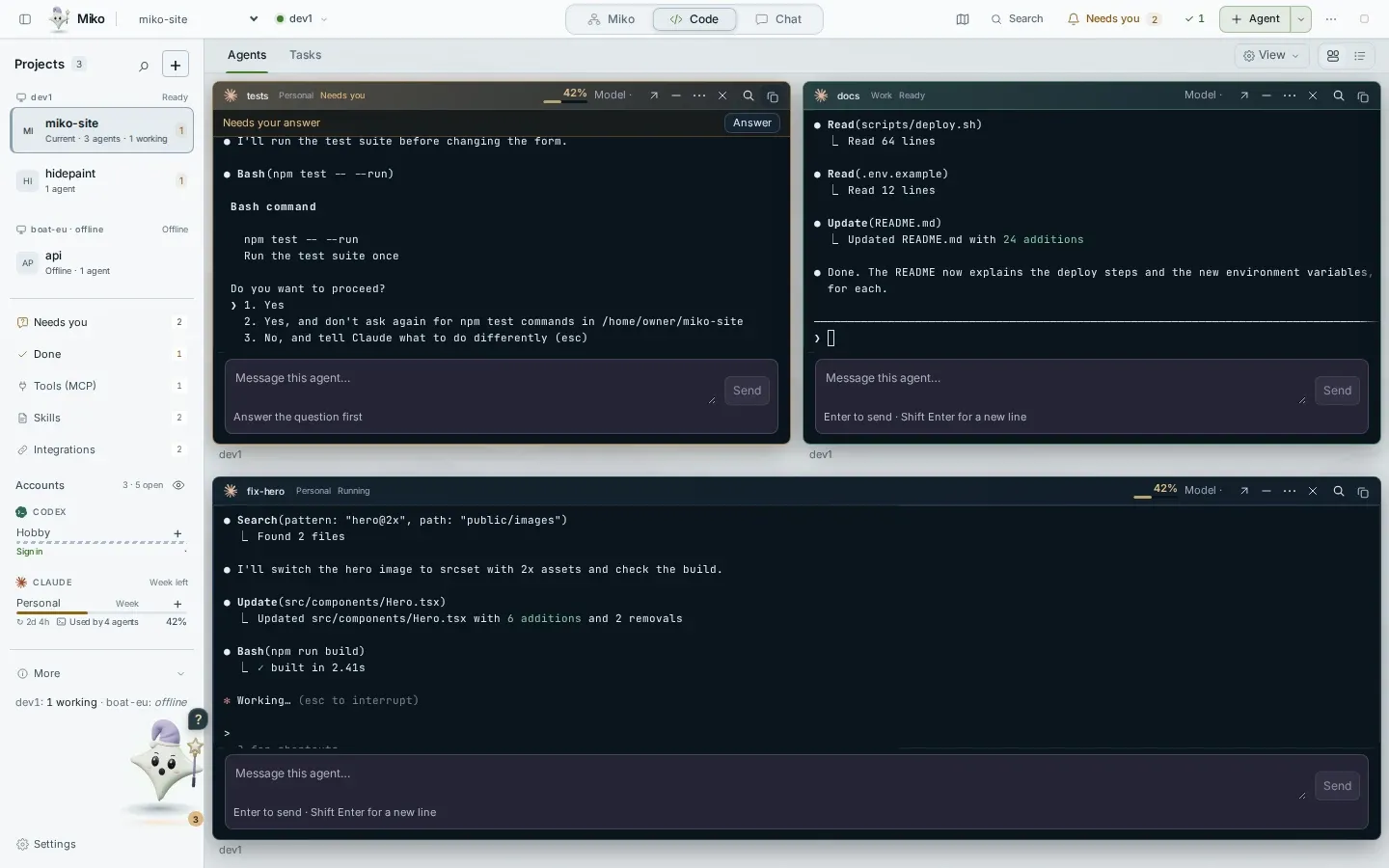
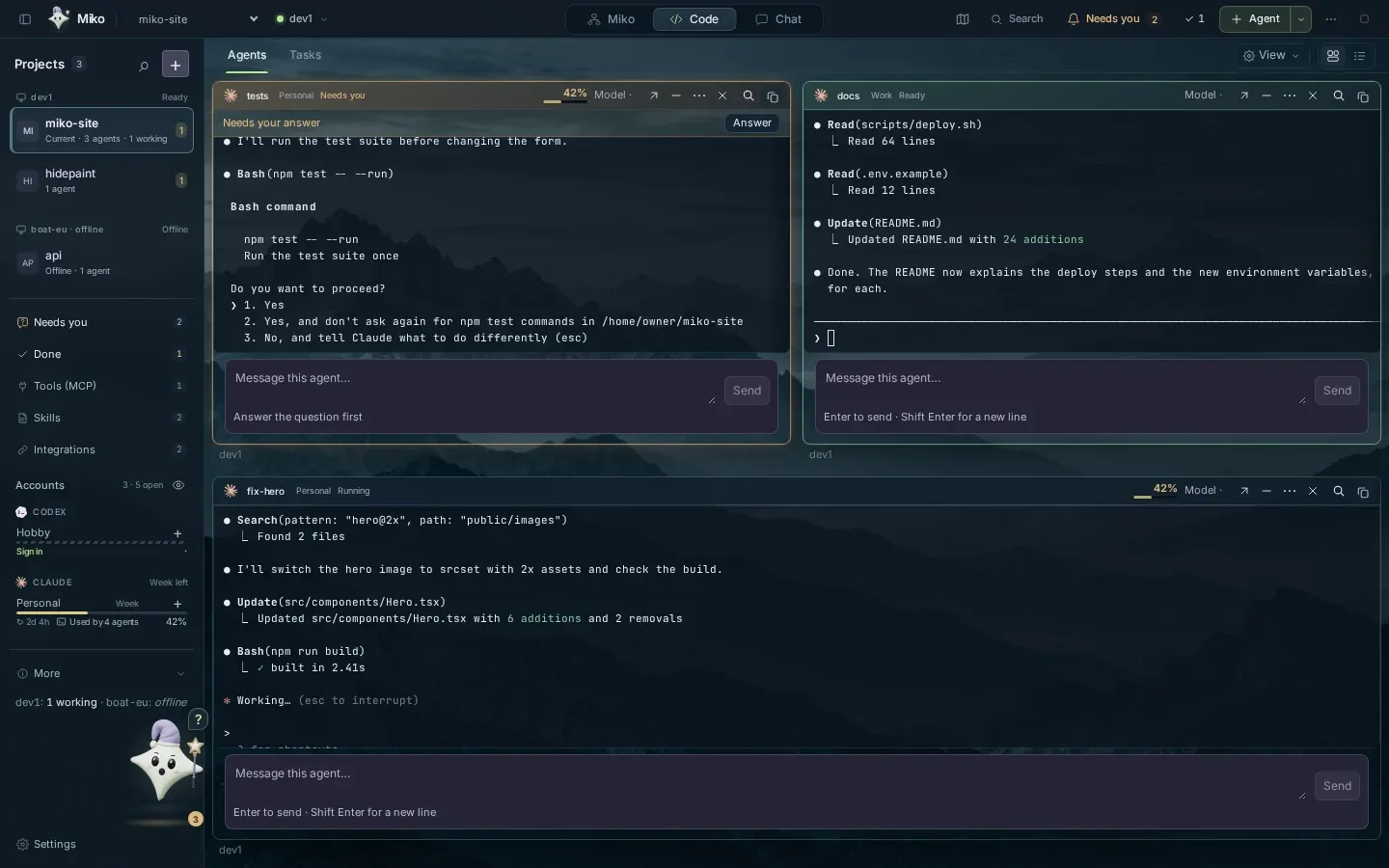
Sign-up is invite-only while we build it. Join the waitlist and we’ll email you an invite. Nothing is charged before launch.
Create your account
Section titled “Create your account”-
Open your invite
Open the whole link from your invite email. It ends with
#invite=….If only part of it opened, Miko shows This invite link is incomplete.
-
Create your passkey
On Create your Miko account, press Create passkey. Miko has no passwords.
Save the passkey where your phone can use it too: iCloud Keychain or Google Password Manager. One person per account.
-
Set up this device
Fill in Name this device and press Finish setup.
Miko creates your account key on this device and locks it with your passkey. If your passkey can’t protect the key in this browser, Miko shows Save your recovery key. Copy or download it, type its last group, then press I saved it, finish setup.
-
Answer Miko’s questions
Miko asks if you’ve used an AI coding helper before. Pick I’m new to this or I already use Claude Code or Codex.
Then three steps: where your agents run, which AI you use, and which code to start with.
Find your way around
Section titled “Find your way around”Sign in
Press Sign in with passkey, then use Face ID, Touch ID or your device’s PIN.
Or press Email me a code. Miko sends a 6-digit code and a link.
Browsers
Use Chrome or Edge 137, Firefox 130, or Safari 17 or later. Nothing to install.
An older browser shows Update your browser.
On a computer
The top bar switches between Miko, Code and Chat. It also holds the map, Search, Needs you with its count, the done count and + Agent.
Search finds anything: ⌘K on a Mac, CtrlShiftK elsewhere. ⌘1–5 go to Projects, Machines, Accounts, Extensions and Routines.
The sidebar lists your projects under each machine, then Needs you, Done, Tools (MCP), Skills, Integrations and your accounts. Settings is at the bottom.
On a phone
The tabs are Inbox, Projects, Machines and Accounts.
The menu at the top right holds Extensions, Routines, Map and Settings.
On iPhone, see Miko on your iPhone.
A shared computer
When you add it, tick Public or shared computer. Miko then forgets the device after 12 hours.
Settings
Section titled “Settings”Settings is at the bottom of the sidebar. It has Machines, Logins, Your servers, Devices, Security, Notifications, Usage, Billing and Account, with links to Docs and Support.
Pick where agents run
Section titled “Pick where agents run”Where should your agents run? offers three places. They keep working when you close the tab.
Miko Cloud
A machine Miko runs for you, in North America. See Plans and billing.
Mac
Shown greyed out with “Miko for Mac isn’t open for download yet.”
Linux
One command connects it. Linux, with nothing to open on your network.
When no place is open to you yet, Join the list puts you on the waitlist.
Connect your own server
Section titled “Connect your own server”-
Get a code
In Machines, choose Add a machine, or pick Linux on first run.
Press Get a code. It works once and expires after 10 minutes.
-
Run the command on your server
Copy the Install command and run it in your server’s terminal.
It checks the server, asks for sudo once, shows what it will change and asks Continue? [Y/n]. It installs Miko Host and Claude Code (about 150 MB) in about 30 s on Ubuntu and 18 s on Debian.
-
Check the words
The server prints three words. The page shows Compare with your server with its own three.
Press Same words only if they match. Words differ refuses the server, and nothing is added.
-
Sign in to an AI account
The page says your server is connected. Next, sign in to an AI account on it.
Claude Code finishes installing in the background in about 15 s.
What your server needs
Section titled “What your server needs”Your server needs
- Ubuntu 24.04 or 26.04, or Debian 12 or 13
- x86_64 with AVX2, or arm64
- At least 2 GB of memory and 3 GB of free disk
- Root, or a user with sudo
- Outgoing HTTPS only, with no ports to open
- A VM or a server, not a container
Updates and removal
Section titled “Updates and removal”Miko already installed
Open Already have Miko on this server? and run the Pairing command: echo … | sudo miko-host pair -.
A reinstalled server
It joins as a new machine.
If an offline machine has the same name, press Replace to remove the old one, or Keep both.
On the server
sudo miko-host doctor checks everything.
sudo miko-host update shows the status and updates. sudo miko-host update –pause 90d pauses updates.
sudo miko-host update –window 03:00-06:00 –tz <zone> sets when updates may install while a terminal is open.
sudo miko-host uninstall removes Miko and keeps the agents’ files.
Updates
Miko updates itself when no agent is working. While a terminal is open, it waits for its update window.
It rolls back by itself if the new version fails.
A machine on an older Miko shows Update now on its card.
Running the install command again never interrupts a working agent.
Behind a proxy
The installer’s –proxy option installs Miko through your proxy. Connecting still needs direct outgoing HTTPS.